![3.2_logo_outlined_black.png]](https://help.shore.com/hs-fs/hubfs/3.2_logo_outlined_black.png?height=34&name=3.2_logo_outlined_black.png)
- Create a service
- How do I create a service with work steps?
- What is preparation time / post-processing time?
- What are add-ons (additional services)?
- Individual notes in booking confirmations
- What is the direct link to booking?
Create a service
Go to Management > services in your calendar. Click on 'Create new.'
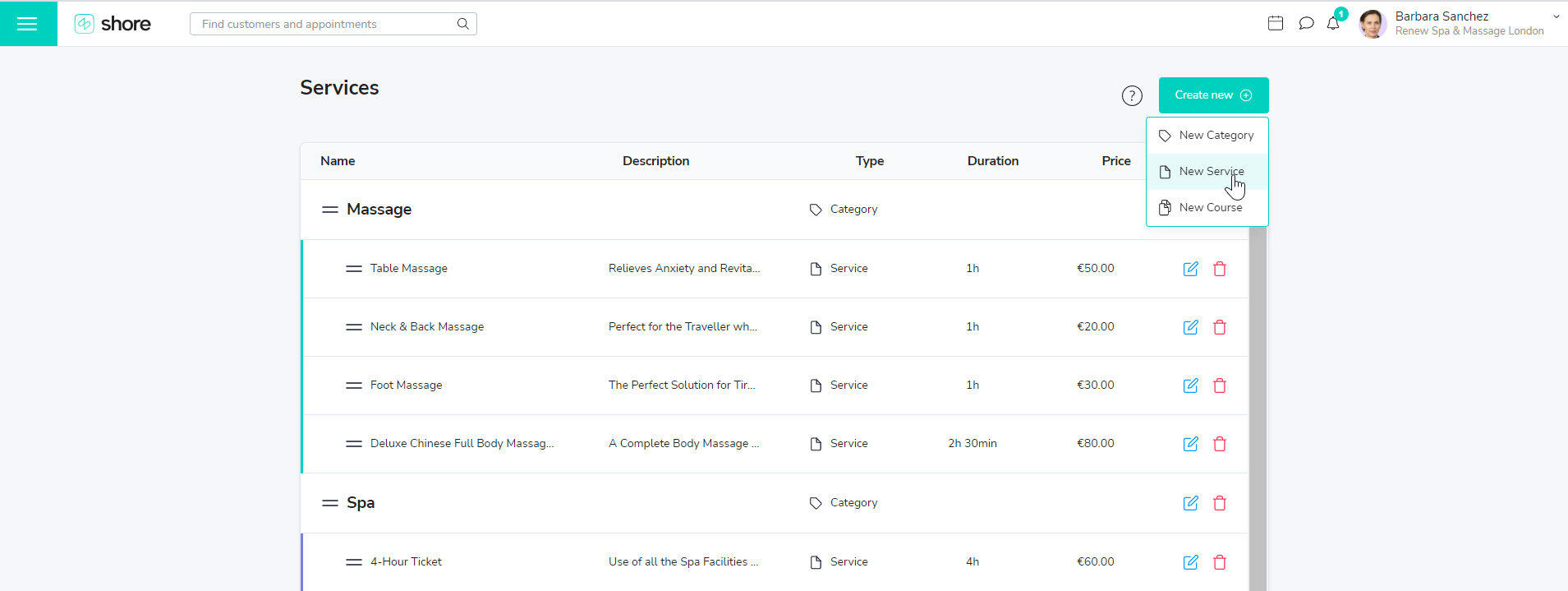
Fill in the “New Service” window with all relevant information.
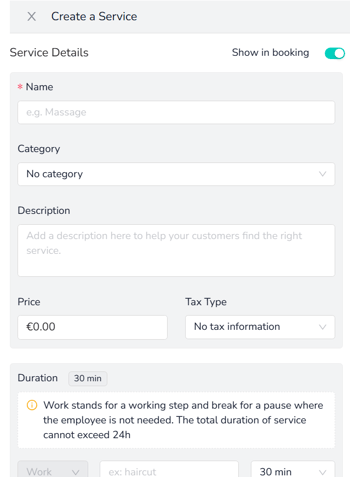
Name: Enter the name of your service here. This is a required field. Price: Only enter fixed prices here.
Category: Select a category to which you’d like to assign the service. If you haven’t created a suitable category yet, don’t worry. You can assign the service to it at a later time.
Description: Provide additional information about your service, e.g. what the service consists of exactly. The description is also useful for services where the price is calculated based on the time and/or material needed. In these cases you could add an estimate like “Starting at $30”.
Price: Only enter fixed prices here.
Duration: Enter the duration of the service.
Online Booking: If this box is checked, your customers can book the service online. If you uncheck it, you can create services that you only offer by personal appointment.
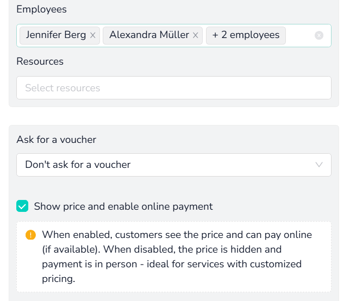
Employees selected / Resources selected: Define which employee can perform the service. If you work with resources (rooms, tables, etc.), define which resource can be used for this service.
Voucher code request: Here you can select Own Promotion, Groupon Promotion, or Daily Deal Promotion. Please note that the voucher code will appear as information in the appointment for you, but the price will not automatically be reduced for the customer.
Show price & activate online payment: When this option is enabled, the price of the service is shown during the booking process and customers can — if available — pay directly online. If the option is disabled, the price remains hidden and payment is made on-site. This is particularly suitable for services with individual pricing.
How do I create a service with work steps?
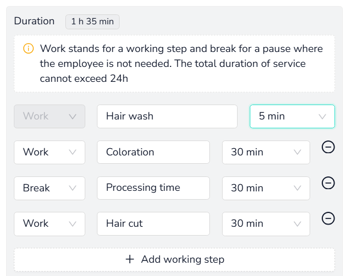
You can divide a service into multiple work steps. This is useful when the individual steps are carried out by different employees.
Work step – Refers to the time period during which you perform the service.
Break – Use a break when the customer remains in the store and you are available for another booking during that time. In a hair salon, for example, while hair color is processing.
Example hair salon: Coloring – the dye needs to process. The customer is on-site, but the employee can serve another customer during the processing time.
What is preparation time / post-processing time?
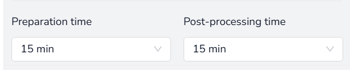
Preparation and post-processing times are used to block time slots before or after the service.
With a preparation time of 15 minutes, the calendar is blocked 15 minutes before the actually booked appointment, so you can, for example, prepare the treatment room.
With post-processing time, the set time period is blocked after the service.
So if the service lasts 30 minutes and the post-processing time is 15 minutes, a total of 45 minutes will be blocked in the calendar.
Add-ons (additional services)
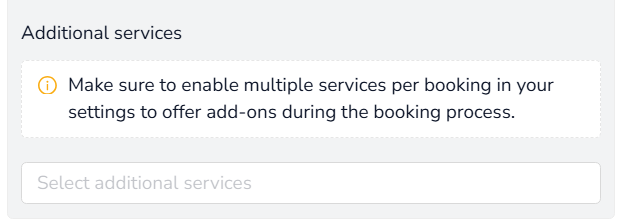
You can add additional services to a service. These are shown to your customers during the booking process after they have selected the main service, so they can optionally book additional services right away.
Important:
To offer additional services, you must enable the option to allow multiple services per booking in your settings.
Individual notes in booking confirmations
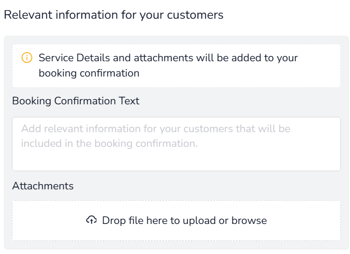
Relevant Information for Your Customers
Here you can add additional information about the service, such as:
-
Preparation instructions
-
Important information about the process
-
Cancellation policies
-
Special notes regarding the service
This text will automatically be included in the booking confirmation sent to your customers.
Attachments
You can upload files (e.g. PDFs, info sheets, or forms).
These will also be sent to your customers along with the booking confirmation once the service has been booked.
Direct Booking Link
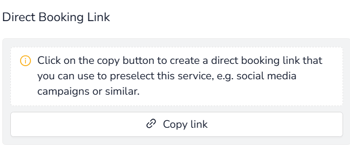
At the bottom, you will find a direct link to this service.
You can use this link for example in:
-
Social media
-
Newsletters
-
Your website
-
Marketing campaigns
to direct customers straight to the booking page for this specific service.
The following features are only available in the Shore Booking + Marketing and Shore All-in-One packages:
-
Additional services
-
Relevant customer information
-
Attachments
-
Direct booking link