![3.2_logo_outlined_black.png]](https://help.shore.com/hs-fs/hubfs/3.2_logo_outlined_black.png?height=34&name=3.2_logo_outlined_black.png)
Note: This article describes the product import feature for Shore POS. It applies to products sold through your POS system, not to services or other entries in the Shore booking system.
What's New in Product Import?
The product import feature in Shore POS has been updated. If you've used the previous product import feature, here are the most important changes:
-
Create, update, and delete products in a single import
Previously, you could choose whether to add new products to your existing products or replace them. Now, you can create, update, and delete products within the same import file.
-
Preview changes before importing
After uploading your file, Shore checks it and provides a preview of the planned changes. Changes to your POS products are only applied once you confirm the import.
-
Skip products with errors
An error in a single product no longer causes the entire import to fail. The preview shows which changes cannot be processed and why. You can then import the valid changes while skipping rows containing errors.
-
Product images are preserved during updates
When you update existing products, their images remain unchanged.
-
Dedicated product import section in the POS Manager
You can now access the product import feature directly from the POS Manager navigation instead of through a tab in the Products section.
Important: Always use the latest import template or a recent product export. Older import templates are no longer supported.
Open Product Import in the POS Manager
To access the product import feature in Shore POS:
- Open the Shore POS Manager.
- Go to Inventory.
- Select Product Import.
Here you can:
- Download an import template.
- Export your current POS products.
- Upload an import file.
- View your previous imports.
-
Download a Template or Export Your POS Products
The file you need depends on what you want to do.
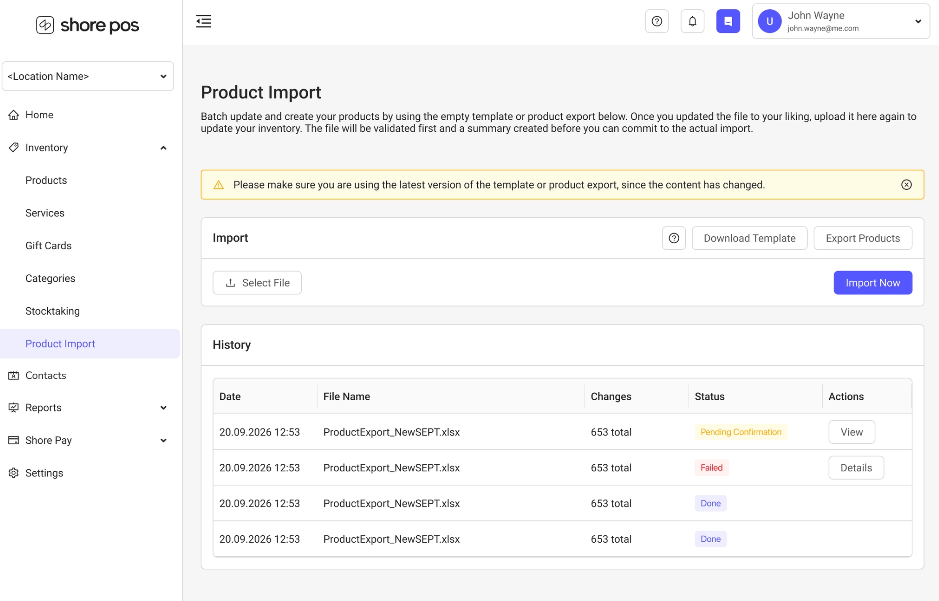
Create New Products
If you want to create new products in Shore POS, download the import template and enter your product information.
Update or Delete Existing Products
If you want to update or delete existing POS products, create a new product export.
Then edit the relevant products directly in the exported Excel file.
Note: Always use an up-to-date import template or product export from your POS Manager.
Edit the Excel File
The Excel file contains information about your POS products and, where applicable, their attributes and variations.
For existing products, the export also contains information that allows Shore to identify each product and correctly assign changes.
Product ID
Each existing POS product has a Product ID in the export. Shore uses this ID to identify which product should be updated or deleted.
Important: Do not change or delete the Product ID of an existing product.
If you remove the Product ID from a row, that row will be treated as a new product during import.
You cannot assign your own Product ID.
Delete Product
If you want to delete an existing product from Shore POS, mark it for deletion using the corresponding column in the Excel file.
Enter Yes, Ja, or True.
When checking the file, Shore verifies whether the product can be deleted. If deletion is not possible, the reason will be displayed in the import preview.
Checksum
The checksum helps Shore identify whether the data of an existing product has changed and whether the product needs to be updated.
Important: Do not change or delete the checksum.
For new products, you can leave the Product ID and Checksum columns empty.
Flexible Price
The new "Flexible price" column allows you to specify whether the price of a product should be flexible. This applies to both existing and new products.
To enable flexible pricing, enter "Yes", "Ja", or "True" in the corresponding column of your Excel file.
Import New Products into Shore POS
Add your new products to the import file.
At least the following information is required for each product:
- Product name
- Tax rate
You can add further product information using the corresponding columns in the import file.
Import Products with Variations
You can also create products with variations using the product import feature.
Make sure that related rows have the same product name. Each product can have a minimum of one and a maximum of three different attribute columns for variations.
Upload the Excel File
Once you have finished editing your Excel file:
- Open Inventory > Product Import in the POS Manager.
- Click Select File.
- Select your Excel file.
- Click Import Now.
Shore will now check your file and prepare the product import.
At this stage, no changes are made to your POS products.
First, Shore checks whether the file can be processed. It then checks the individual rows and determines which products should be created, updated, or deleted.
Depending on the size of your file, this process may take some time.
Review the Import Preview
Once the file has been successfully checked, the import will appear in your import history.
Open the import by clicking View to access the preview.
Here you can see how many products will be:
- Created
- Updated
- Deleted
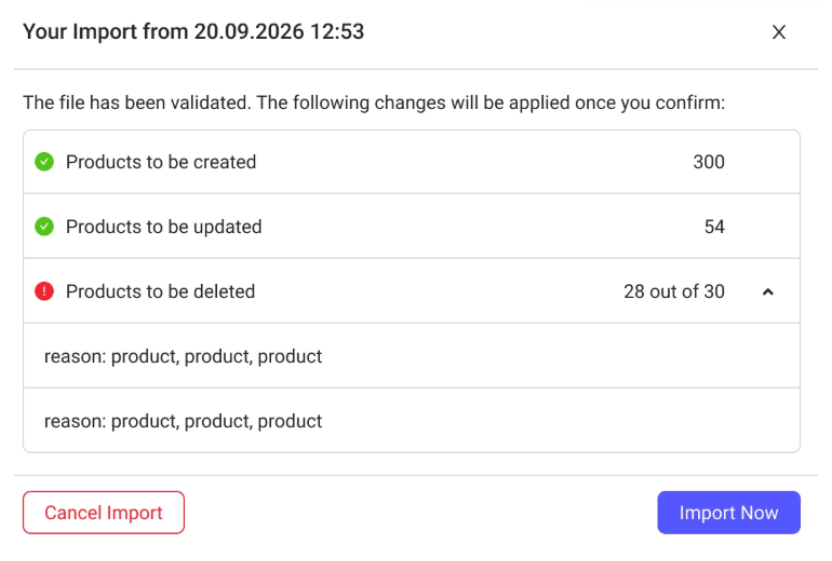
If a change cannot be processed, it will be marked accordingly. Open the relevant section to see the reason and the affected rows.
This allows you to review the changes that will be made to your POS products before confirming the import.
What Happens If There Are Errors?
The Excel File Cannot Be Processed
If the file is invalid or required columns are missing, Shore cannot generate an import preview.
The import history will show why the file could not be processed. Correct the file and upload it again.
Individual Products Cannot Be Processed
If the file itself can be processed but certain product changes are not possible, these errors will be displayed in the preview.
You can still proceed with the import. The affected rows will be skipped, while the valid changes will be imported.
Confirm the Product Import
Once you have reviewed the preview and want to apply the displayed changes, click Import Now.
Shore checks the changes again and then applies the valid changes to your POS products.
Depending on the size of your file, this process may take some time.
If you do not want to apply the changes, you can cancel the import, edit your Excel file, and upload it again.
Frequently Asked Questions About Shore POS Product Import
Can I Assign My Own Product ID?
No. Product IDs are assigned by Shore and are used to uniquely identify existing POS products.
If you enter a Product ID that does not belong to a valid product in your account, the corresponding row cannot be processed.
Can I Accidentally Edit Products from Another Shore Account?
No. Shore checks whether the Product ID belongs to your account. If the ID belongs to another account, the corresponding change will not be processed.
What Happens If the Same Product ID Appears Multiple Times?
The first entry with that Product ID will be processed. Additional entries with the same ID will be identified as duplicates and displayed as errors.
Which Information Is Validated During Product Import?
Shore checks, among other things:
- Required fields, such as product name and tax rate.
- Duplicate product names.
- The length of individual fields.
- Whether the specified tax rate is available in your account.
Can I Import Products with Variations?
Yes. Products with variations can be created using the product import feature. Each product can have up to three different attribute columns for variations.
Can I Import Services or Vouchers?
No. The product import feature is intended exclusively for products in Shore POS.
All rows in the uploaded file are treated as products. Services and vouchers are also not included in the product export.
Can I Delete All Products from Shore POS?
You can mark all existing products in your export file for deletion.
However, products linked to a deposit cannot be deleted. These products will be skipped and marked accordingly in the import preview.
Will My Product Images Be Preserved When Updating Products?
Yes. When you update existing POS products using the product import feature, their existing images will be preserved.