![3.2_logo_outlined_black.png]](https://help.shore.com/hs-fs/hubfs/3.2_logo_outlined_black.png?height=34&name=3.2_logo_outlined_black.png)
Under Calendar Settings > Customer Notifications, you can define how your customer communication — such as appointment confirmations and reminders — is sent, whether by email or SMS.
Enabling Email Reply-To
Enable this feature in Customer Notifications to set a reply-to address for your email communication. When a customer replies to an appointment confirmation, reminder, or newsletter, the reply will be forwarded to the email address you specify.
👉 Here's how to set it up:
- Enable the "Enable Email Reply-To" toggle.
- Enter your desired email address.
Important:
If no email address is set, emails will continue to be sent from noreply@shore.com. This means that if customers reply to the noreply@shore.com address, those emails will go unanswered.
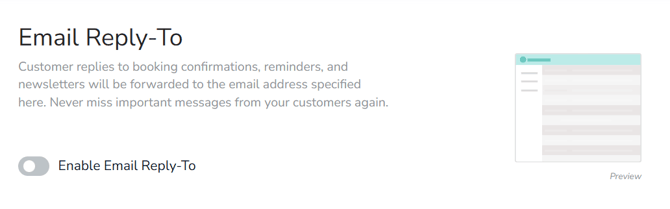
Note: Email Reply-To is only included in the Shore Booking + Marketing and Shore All In One packages.
Email Sender Name
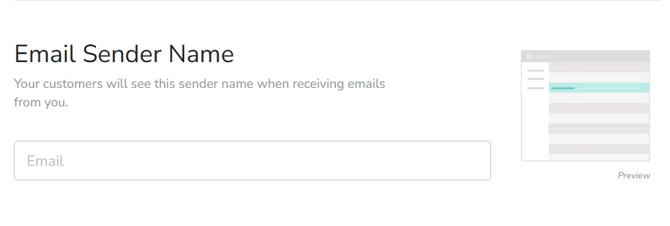
Here you can define the display name shown to your customers as the sender name in emails — for example, your company name or a custom brand name.
Customer Note
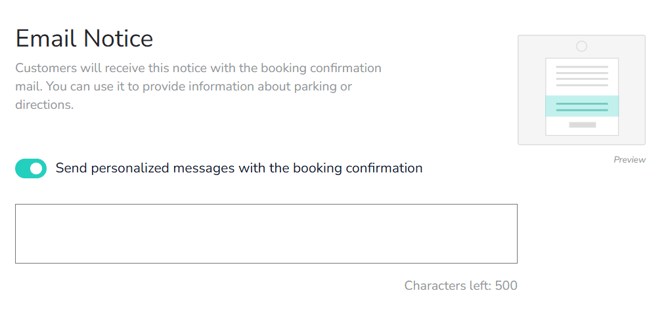
With a customer note, you can add a personal message to your email appointment confirmations — for example, directions or special notes about the appointment.
To do this, enable the "Include Personal Message with Appointment Confirmation" toggle and enter your note text.
Important: This message is sent only by email, not by SMS.
Note: From the Shore Booking + Marketing package onward, in addition to the general customer note, you also have the option to add individual customer notes to each service.
Company Name in Text Messages
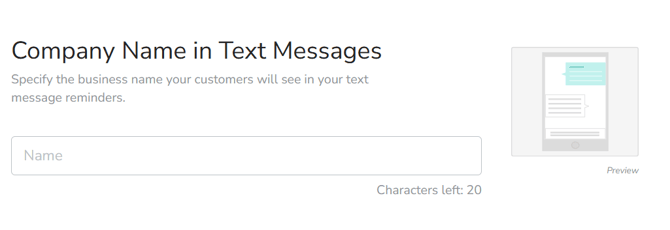
Here you can set which name is shown to your customers in the SMS appointment reminder.
The name can be up to 20 characters long. It's included along with the appointment date and time.
Here's how the SMS appointment reminder is structured:
(Your salon's name) on (appointment date):
(Your message)
Link to the appointment
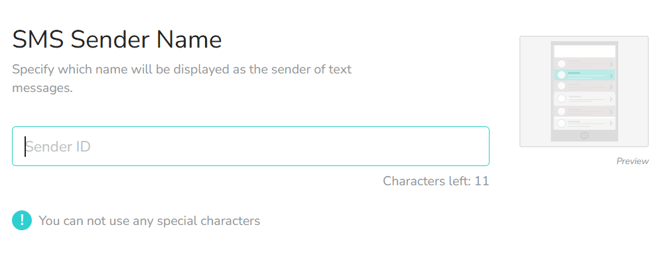
SMS Sender
In this field, you set which company name appears as the sender of your SMS messages. The name can be up to 11 characters long.
Customer Feedback
Here you can control whether and when your customers are automatically asked by email for a review.
If enabled, the feedback is published on your booking page.
You can choose:
- Whether feedback requests are sent
- The interval at which they're sent (e.g. after every appointment)
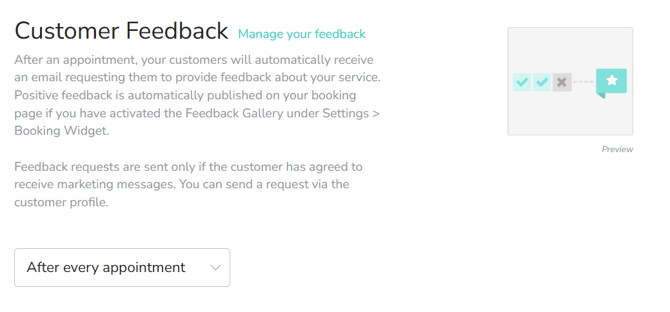
Important: The request is only sent if your customer has consented to receiving marketing communications.
Customer Feedback+
With Customer Feedback+, you can automatically send your customers an invitation to leave a review on Google, Facebook, or Trustpilot right after they give positive feedback.
This makes it especially easy for your customers to leave you public feedback on the platform of their choice.
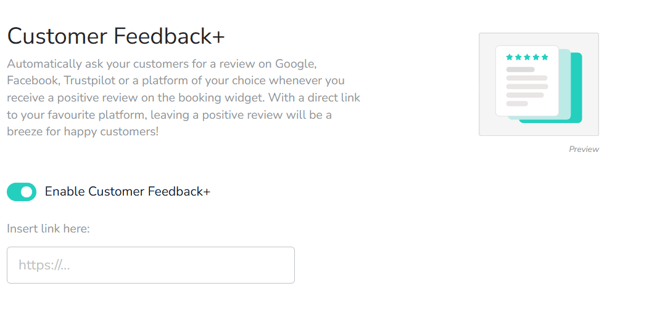
Customer Feedback+ is only included in the Shore Booking + Marketing and Shore All In One packages.