![3.2_logo_outlined_black.png]](https://help.shore.com/hs-fs/hubfs/3.2_logo_outlined_black.png?height=34&name=3.2_logo_outlined_black.png)
What is Shore Pay Online?
Shore Pay Online is our new integrated solution for online payments that you can activate directly through your Shore calendar. It gives you a simple way to securely and conveniently process payments for appointment bookings.
What Shore Pay Online offers:
-
Accept online payments for booked appointments
-
Full control over payouts, refunds & transactions via the Express Dashboard
-
Easy self-service activation, no support needed
-
Transparent and competitive 2.49 % transaction fee
-
Currently supports debit cards, credit cards, Google and Apple Pay, Klarna
Benefits of Shore Pay Online
-
Fewer no‑shows thanks to upfront payments
-
Faster revenue from online booking & payment
-
Simple management via your Express Dashboard
Requirements & Key Notes
To use Shore Pay Online, you need:
- Tax must be correctly configured in the system
- Taxes must be created under Setup > Calendar Settings > Taxes
- Afterwards, taxes can be added to each individual service
- By default, the tax rate applicable in your country will be used if no tax is set.
- A separate Shore Pay account is required for each location
- After the initial setup, adding Shore Pay for additional locations is very quick: The data is automatically transferred – you only need to confirm it, and Shore Pay Online will be activated
How to enable Shore Pay Online
You can easily activate it yourself:
-
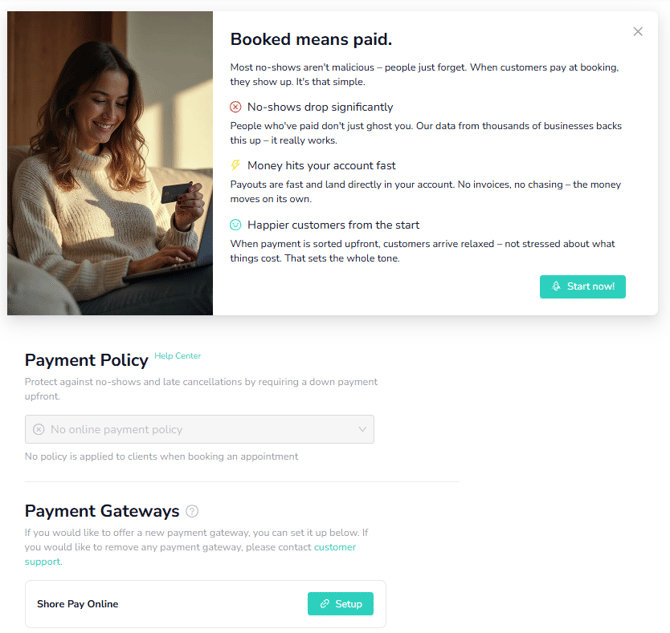
In your calendar, go to Setup > Calendar Settings > Payments
-
Click on “Start now” in the info window or on “Setup” next to “Shore Pay Online” at the bottom.
-
You’ll be redirected to the Shore Pay Online onboarding process -
Enter the following information:
-
Company details
-
Details of the responsible person
-
Bank account details for payouts
-
-
After successful setup, you’ll be returned to your Shore calendar
Setting payment options
Once Shore Pay Online is active, you can choose how customers can pay:
-
Only pay on-site
-
Only online payment
-
Both on-site and online payment (recommended)
You can set this under Setup > Calendar Settings > Payments in your Shore calendar
Note: The option “Let your customers decide whether they want to pay online” is not available immediately after activation of Shore Pay Online.
This option will appear approximately 2 days after activation.
Important: When activating Shore Pay Online, the customer attribute “Address” must be set as a required field.
Your end customers will then be asked to enter their address during the booking process.
This is necessary because an invoice will be generated after the booking.
If the billing address is not set as a required field and the customer does not enter an address, this may cause issues during the booking process.
In such cases, the payment page may fail to load properly and remain stuck in a loading state.
Frequently Asked Questions
-
What is the fee?
2.49 % per transaction. Different conditions apply for payments via Klarna.
The fee is 2.99% + €0.35 per transaction. -
Which payment methods are currently available?
Currently, only debit and credit card payments are supported. Additional methods are planned.
Transactions & Management
-
View payments:
In the Transactions section, you can view all payments. -
Issue refunds:
Click on the desired transaction in Transactions and then select “Click here to issue a refund.” You can then decide whether to refund the full amount or only a partial amount. -
Download invoices:
Next to each transaction, you’ll find a download icon that allows you to download the invoice directly. -
Access the Express Dashboard:
From here, you can also access the Express Dashboard, where you can configure general settings such as the payment interval.