![3.2_logo_outlined_black.png]](https://help.shore.com/hs-fs/hubfs/3.2_logo_outlined_black.png?height=34&name=3.2_logo_outlined_black.png)
You can find an overview of compatible scanners here.
To use the mobile handheld scanner, you'll first need to prepare it and connect it to your iPad via Bluetooth.
Preparing the Mobile Handheld Scanner
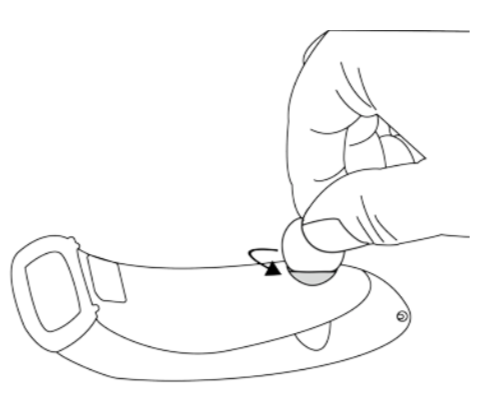
- Insert the batteries into the scanner. Use a coin or similar object to open and close the battery cover.
- If needed, connect the scanner to the included power adapter to charge the batteries.
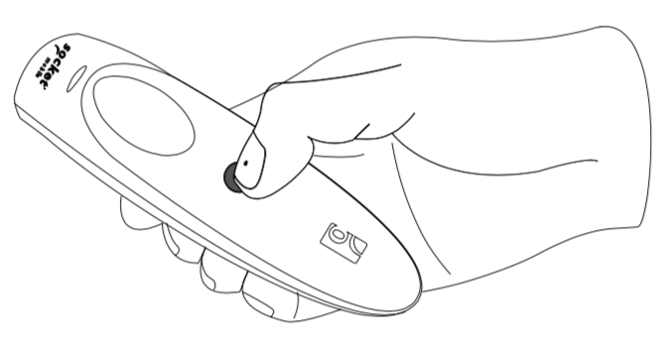
- Hold down the power button to turn on the device. A short beep and a blinking blue LED indicate that the scanner is ready for use.
- Scan this code to set up iOS mode.
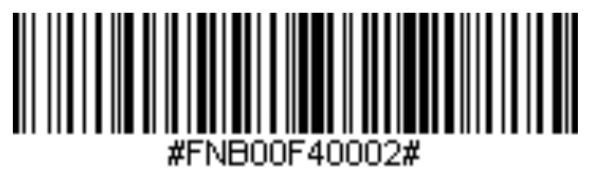
- A short series of tones confirms that iOS mode has been set up.
Connecting the Mobile Handheld Scanner to Your iPad
- Open Settings on your iPad.
- Select Bluetooth. Make sure Bluetooth is turned on.
- Select "Socket CHS..." from the device list (other devices) to pair the scanner with your iPad.
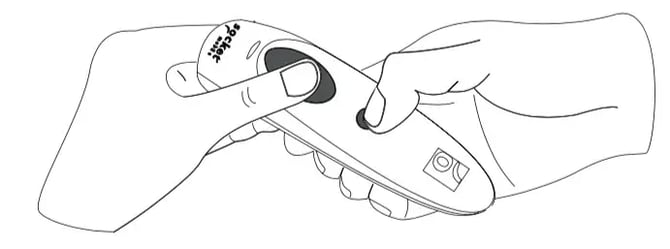
Tip: If the scanner doesn't automatically appear in the list of Bluetooth devices, press and hold the scanner button and the power button at the same time. Then turn the scanner back on.
- The scanner is now connected and ready to use.
- Open the Shore POS App on your iPad. A short beep from the scanner indicates that the Shore POS has recognized it.
Resetting the Mobile Handheld Scanner
If the handheld scanner won't connect, you can also reset it and set it up again.
To reset it to factory settings, scan the following code:
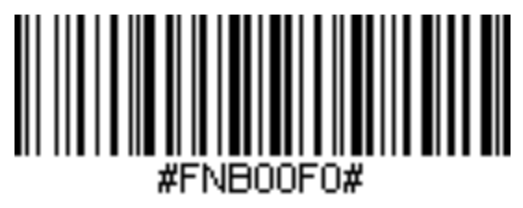
The scanner will beep 6 times. Then continue with setting up iOS mode.
More information about the Socket handheld scanner is available in the Socket Scan User Guide.
Frequently Asked Questions & Troubleshooting
The Scanner Won't Connect
In this case, check the following points:
- Make sure the batteries are inserted in the scanner and charged.
- Turn on the scanner (the blue LED should blink).
- On your iPad, open Settings > Bluetooth and connect to "Socket CHS...". If the scanner doesn't appear in the list, hold down the scanner button and the power button at the same time, then restart the scanner.
- Open the Shore POS App. If the scanner beeps briefly, it's been recognized.
- If the scanner still won't connect, you can reset it by scanning the reset code (see the section Resetting the Mobile Handheld Scanner). Then set up iOS mode again and reconnect the scanner.
It also often helps to simply restart the Shore POS App or the iPad.
The Scanner Behaves Like a Keyboard (Wrong Mode)
If your scanner behaves like a keyboard when scanning (e.g. apps open unexpectedly, or characters are typed into text fields), it's likely in HID mode (classic keyboard mode) instead of the iOS mode required for the Shore POS App.
Here's how to switch back to iOS mode:
- Disconnect the scanner in your iPad's Bluetooth settings (important so the mode change is applied correctly).
- Scan the iOS code from the Socket Scan User Guide (page 21), or the code in the Preparing the Mobile Handheld Scanner section.
- Then reconnect the scanner to your iPad via Bluetooth.
Can I Scan Barcodes for Stocktaking?
For individual items, you can scan the EAN code directly in the Shore POS App under Inventory, swipe right to select the relevant item, and correct the stock level using the Adjust Stock button.
There's currently no direct alternative in the app for larger stocktaking volumes — for this, it's best to use the stocktake list as an XLS export.
Note for technically experienced users: Alternatively, the handheld scanner can be switched into HID mode (keyboard mode) and connected to a Google Sheet on the iPad, so codes can be scanned directly into a spreadsheet (including automatic line breaks in the Socket app). A count function or pivot table can then be used to summarize the scanned EAN codes, which can afterward be transferred into the stocktake list using VLOOKUP. This approach is more involved and is only suitable if you're comfortable working with spreadsheets.