![3.2_logo_outlined_black.png]](https://help.shore.com/hs-fs/hubfs/3.2_logo_outlined_black.png?height=34&name=3.2_logo_outlined_black.png)
Requirements
The deposit feature is available to customers with Shore Kasse+ and Shore All In One.
Please note the following requirements:
- Deposits can only be created for products and services.
- Vouchers can't be sold with a deposit.
- All items in the cart must have the same tax rate.
- Only one deposit can be created per cart.
Creating a Deposit
- Add the desired items to the cart.
- Tap the three-dot menu above the cart.
- Select Add Deposit.
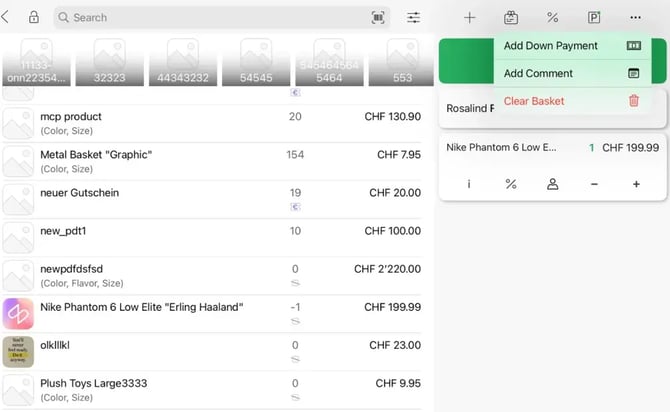
- Enter the deposit amount as a percentage or a fixed amount.
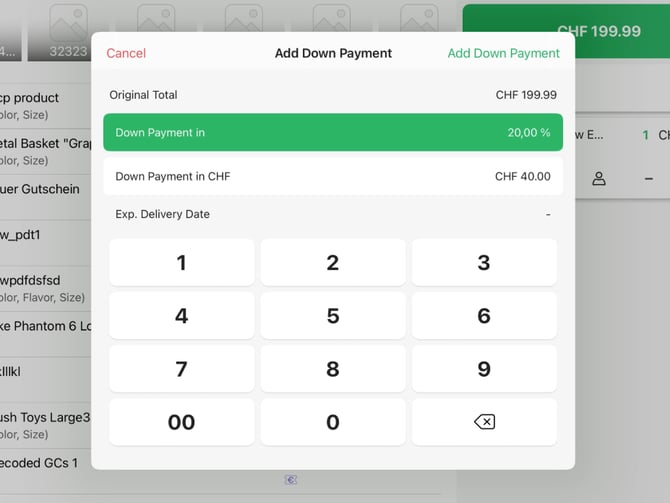
- Optionally, you can add an expected delivery or service date.
- Complete the payment as usual.
Once the payment is successful, the Shore POS automatically generates a deposit invoice.
What Happens After the Deposit?
Once the deposit is complete, the Shore POS automatically creates a parked cart for the later final invoice.
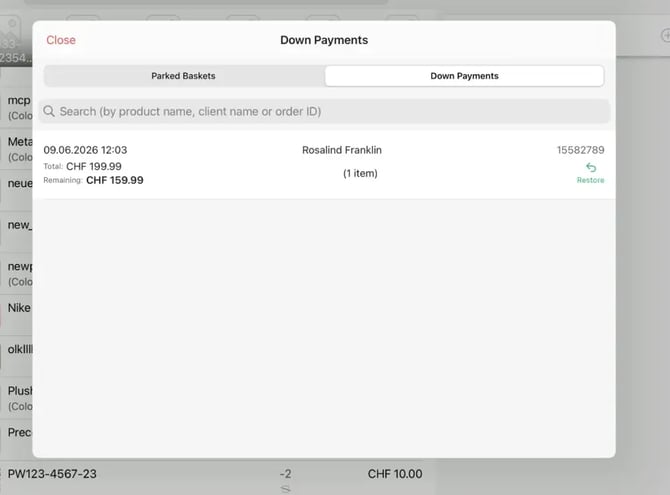
This cart is linked to the deposit and is needed to settle the remaining balance later.
Settling the Remaining Balance
- Open the list of parked carts.
- Switch to the Deposits section.
- Open the relevant cart.
- Check out the remaining amount.
- Complete the payment.
The Shore POS automatically deducts the deposit amount already paid from the total and then generates the final invoice.
Important Notes
- The original items can't be removed from the cart once the deposit has been created.
- You can add additional items to the cart.
- The deposit only applies to the items originally included.
- The price of the original items can no longer be changed once the deposit has been created.
- Only one deposit is possible per cart.
Reviewing Deposits in the POS Manager
In the POS Manager, you can view an overview of all open, completed, and refunded deposits at any time.
Opening the Deposit Report
- Open the POS Manager.
- Go to Reports > Live Reports.
- Select the Deposits tab.
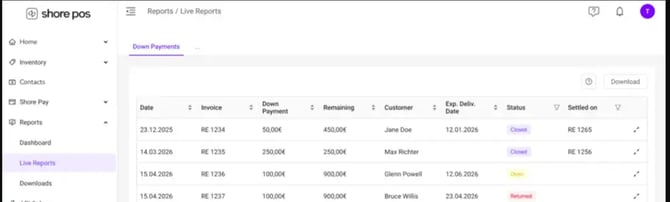
The report gives you a clear overview of all deposits.
Available Information
For each deposit, the following information is shown, among other things:
- Date of the deposit invoice
- Invoice number
- Deposit amount
- Remaining balance
- Customer
- Expected delivery date
- Deposit status
- Final invoice number (for completed deposits)
Deposit Status
The following statuses are possible:
- Open – The deposit has been recorded, but the final invoice hasn't been created yet.
- Completed – The deposit has been fully settled via a final invoice.
- Refunded – The deposit invoice has been cancelled or refunded.
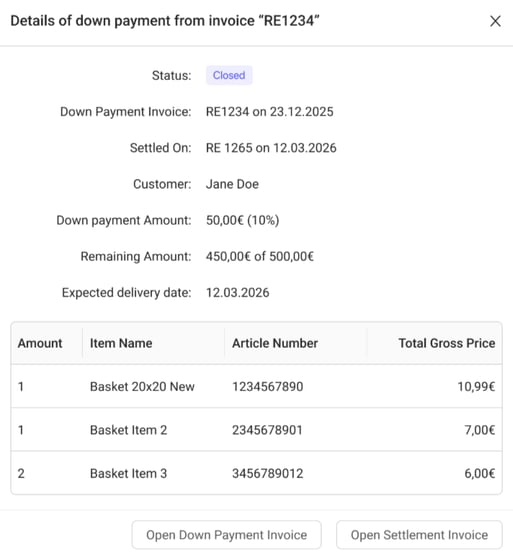
Viewing Deposit Details
The detail view lets you see further information about a deposit, including:
- Deposit status
- Invoice number and date of the deposit invoice
- Invoice number and date of the final invoice
- Customer
- Deposit amount
- Outstanding balance
- Stored delivery date
- The originally included items
You can also open the deposit invoice and the corresponding final invoice directly from the detail view.
Frequently Asked Questions
How is a deposit different from an installment payment or purchase on invoice?
With a deposit, payment is made before the service is provided or goods are handed over, and the remaining balance is paid later. With an installment payment or purchase on invoice, payment only happens after the service has been provided. Currently, the Shore POS only supports deposits.
Can I create a deposit for any item?
No. Deposits can only be created for products and services. Deposits can't be recorded for vouchers.
Can I create a deposit for multiple items?
Yes. You can combine multiple items in one cart and collect a deposit for them. However, all items must have the same tax rate.
What happens after a deposit?
Once the deposit is complete, the Shore POS automatically creates a parked cart for the later final invoice. This cart stays linked to the deposit and can't be deleted.
What happens if I add an expected delivery date?
If you enter a delivery or service date, a corresponding note with the planned date is shown on the deposit invoice.
Do I get notified when the delivery date arrives?
No. In the current version, no reminders or notifications are sent. However, you can view open deposits via the available reports.
Can I record another deposit for a deposit cart?
No. Only one deposit can be created per cart. If a customer wants to pay in more than two partial amounts, that's considered an installment payment, which currently isn't supported.
How are parked deposit carts sorted?
Parked deposit carts are sorted by their creation date. The sort order currently can't be customized.
Can I search for parked deposit carts?
Yes. You can use the search function to search by customer name or item.
Which invoices does my customer receive?
Your customer receives:
- a deposit invoice when the deposit is paid
- a final invoice when the remaining balance is paid
Both invoices are linked to each other.
Can I combine discounts with deposits?
Yes. Discounts can be applied directly to individual items. Cart-level discounts currently aren't supported for deposits.
How are deposits handled in accounting?
Deposits are treated as liabilities until the final invoice is created. Once the final invoice is issued, the deposit is automatically offset.
Do deposits work with DATEV and other accounting interfaces?
Yes. Deposits are exported with the corresponding account codes and can be processed via existing accounting interfaces.
Are deposit invoices fiscalized?
Yes. Both the deposit invoice and the final invoice are fiscalized in accordance with applicable legal requirements.
How do refunds work?
As long as the deposit hasn't yet been settled with a final invoice, the deposit invoice can be cancelled. The associated parked cart is removed as well. If a final invoice has already been created, the refund is processed via the final invoice — an additional refund of the deposit invoice isn't necessary.
Can I create a deposit for only a single item in a cart?
No. A deposit always applies to the entire cart. If you only want to collect a deposit for certain items, put them in a separate cart.
Can I change an item's price afterward?
No. Once a deposit has been created, the prices of the original items are locked and can't be changed. If additional costs arise, you can add further items or services to the cart.
What happens if I uninstall the app?
Parked deposit carts are stored in the cloud and remain intact. They can only be removed by settling the remaining balance or by cancelling the deposit invoice.
What happens if a product is deleted?
Even if a product is later deleted, all the information needed remains stored in the parked cart. The final invoice can still be created.
Which payment methods can I use for deposits?
The same payment methods apply to deposits as to regular sales. You can settle the deposit and the later remaining payment using different payment methods. Split payments are also supported.
What happens if the deposit is higher than the later sale price?
This currently can't occur. Once a deposit has been created, the prices of the original items are locked and can't be reduced.
What happens if a product is deleted before the final invoice?
The product's information remains stored in the parked cart. The final invoice can still be created without issues.
What happens if an item's tax rate changes?
The Shore POS stores the tax rate that was valid at the time the deposit was made. This tax rate is also retained for the later final invoice.
Are different tax rates within one cart supported?
No. A deposit can only be created if all items in the cart use the same tax rate. Carts with multiple tax rates currently aren't supported.
Can I remove items from a deposit cart?
No. The original items remain locked once the deposit has been created and can't be removed. Additional items, however, can still be added.
Is the deposit automatically offset against the remaining balance?
Yes. When the parked deposit cart is opened, the deposit already paid is automatically taken into account and deducted from the open amount.
Which items does the deposit apply to?
The deposit applies only to the items that were originally in the cart at the time the deposit was created.
Which packages include the deposit feature?
The deposit feature is available in the Shore POS+ and Shore All In One packages. It isn't included in the Shore Kasse package.