![3.2_logo_outlined_black.png]](https://help.shore.com/hs-fs/hubfs/3.2_logo_outlined_black.png?height=34&name=3.2_logo_outlined_black.png)
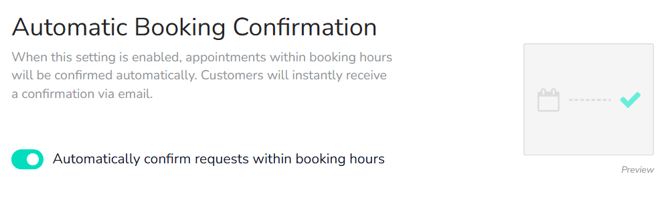
Automatic Booking Confirmation
With this feature, appointments and booking requests are automatically confirmed as soon as they fall within your defined booking hours. You no longer need to manually approve bookings, saving time and preventing double bookings.
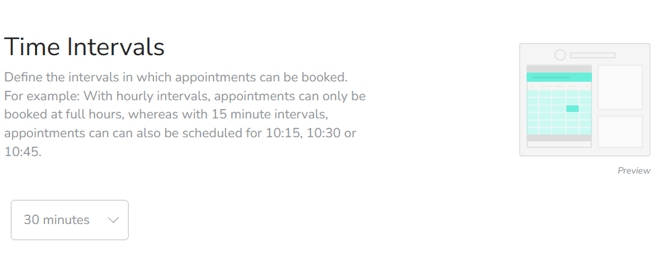
Time Intervals
The appointment cycle defines at which time intervals appointments can be booked (e.g. every 15 minutes, 30 minutes, etc.).
What is the difference between time intervals and the accuracy of the calendar?
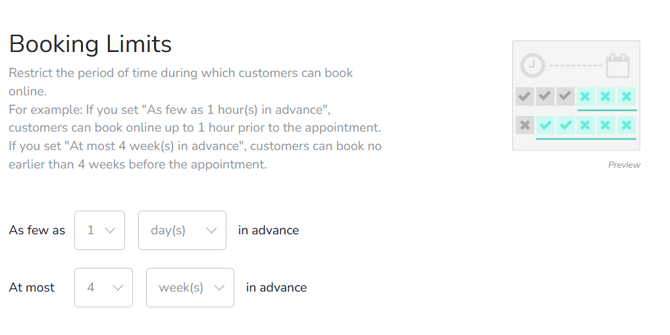
Booking Limits
Booking limits determine how far in advance or how last-minute customers can book appointments online. This ensures your calendar is optimally utilized and allows you to fill short-notice gaps.
Cancellation / Rescheduling Limit
Use the Cancellation / Rescheduling Limit to define until when your customers can cancel or reschedule their appointments online.
Example:
With a limit of 24 hours, an appointment scheduled for the 12th at 3:00 PM can be cancelled or rescheduled online until the 11th at 3:00 PM. After that, customers must contact you directly.

Enable withdrawal function
This setting allows you to decide whether customers should be offered the option to exercise their statutory right of withdrawal for online bookings.
Whether a statutory right of withdrawal applies to your services or an exception applies depends on the type of services you offer. Shore provides the technical functionality. Please check which legal requirements apply to your business and enable or disable the function accordingly.

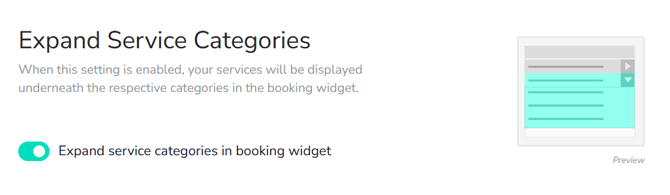
Expand Service Categories
With this setting, service categories are automatically expanded during the booking process. Customers immediately see the available services and can select more quickly, making booking easier.
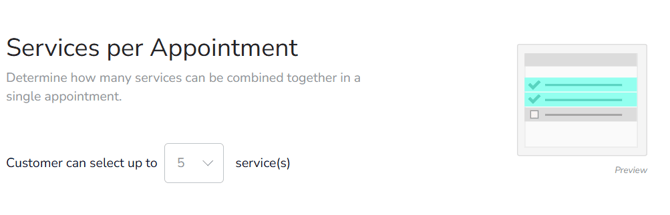
Services per Appointment
You determine how many services a customer can book per appointment. This setting is useful when customers are allowed to book multiple services back-to-back, or should only select one service per appointment.
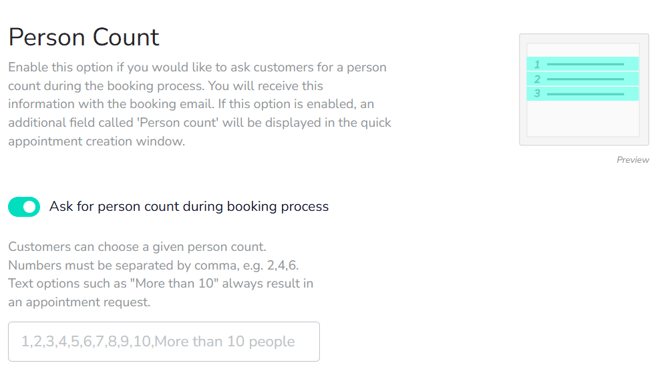
Person Count
During booking, the number of participating persons can be specified. This is particularly relevant for pricing, resource planning, and the maximum capacity of an appointment.
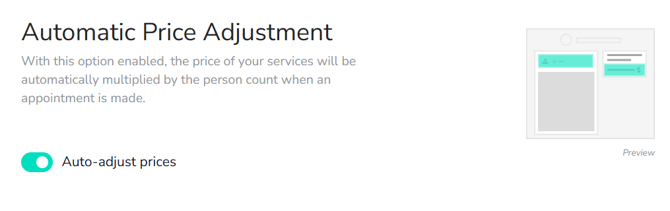
Automatic Price Adjustment
Prices automatically adjust to the specified number of persons. This ensures bookings are calculated correctly without you having to manually change prices.
Employee Selection
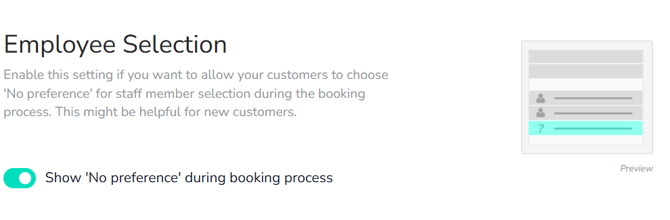
Activate the "Any employee" option here in the booking process. This allows customers to book appointments independently of a specific employee and see all available time slots.
Shift Plan
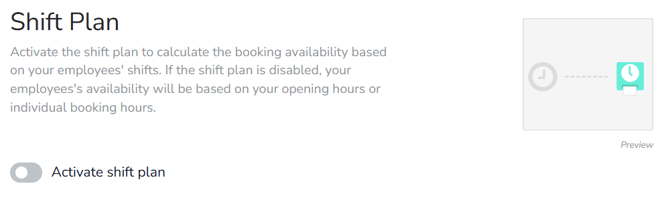
The shift plan allows you to manage employee availability through defined shifts. This way, working hours, breaks, and different schedules can be mapped without changing the general opening hours.
Note: Once the shift plan is activated, all general and individual booking hours are deactivated. For online booking, only the shift plan applies. Make sure that shifts are created for all employees and resources, as otherwise no bookings are possible.
How do I activate the shift plan?
Combine Employee and Room
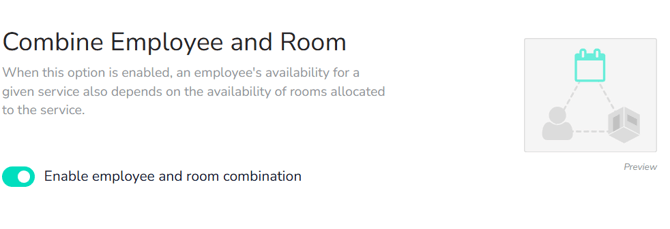
Availability is checked based on employees and rooms simultaneously. Appointments can only be booked when both the employee and the room are available.
How do I set the employee-room combination correctly?
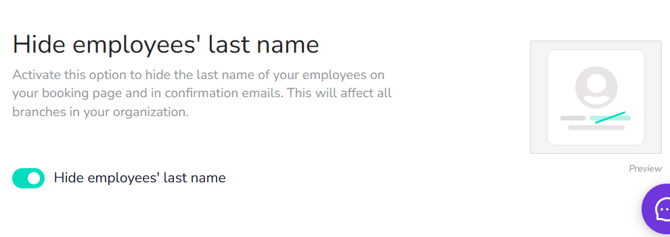
Hide Employee Last Name
With this setting, the last name of employees is hidden in the booking form and in confirmations.