![3.2_logo_outlined_black.png]](https://help.shore.com/hs-fs/hubfs/3.2_logo_outlined_black.png?height=34&name=3.2_logo_outlined_black.png)
With the WhatsApp integration, you can contact your clients directly through this channel — for example, to send appointment reminders, newsletters, or special promotions. The setup only takes a few minutes.
💡 Tip:
If you’d like to learn more about what the WhatsApp integration with Superchat and Shore is and the benefits it offers, read this article:
What is the WhatsApp integration with Superchat and Shore?
Step 1: Activate the Superchat Integration in Shore
-
In your Shore calendar, go to Settings → Integrations.
-
Click the link to create a free Superchat account (Free Package).
-
Turn on the switch labeled Activate Superchat.
From this point on, your customer data (name, email address, and phone number) will automatically sync with Superchat.
Customer sync information
Once the API key has been connected successfully, all existing customers with a phone number are exported to Superchat in a one-time initial sync.
After that, new customers and updates to existing customer records are automatically synchronized within a few seconds.
Customers without a phone number are not synchronized to Superchat.
Step 2: Connect Your WhatsApp Business Account
-
Log in to Superchat.
-
Add your existing WhatsApp Business account.
-
If you don’t have one yet, you can create it directly from within Superchat.
Step 3: Create an API Key in Superchat
-
Log in to your Superchat account.
-
Go to Integrations → Explore Integrations.
-
Select API Key and click Add.
-
Create a new API key, copy it, and save it somewhere secure.
Step 4: Insert the API Key in Shore
-
Go back to your Shore calendar → Settings → Integrations.
-
Paste the API key into the appropriate field.
-
Click Save.
✅ If everything is correct, the integration will be activated.
⚠️ If you see the message “Changes could not be saved”, check that the API key is correct or contact Superchat Support.
Step 5: Getting Started with the Free Package
Create a template to inform your customers that you are now reachable via WhatsApp. You can find a guide on how to create templates in Superchat.
Template examples:
-
An initial WhatsApp newsletter announcing special offers (e.g. Black Friday, holiday deals, etc.).
Important: Templates created manually in Superchat are only used for newsletters and manually sent messages.
Appointment reminder templates are created automatically by Shore when a WhatsApp reminder is saved (see Step 6).
Templates created manually in Superchat are never used for appointment reminders.
⚠️ Note:
With the free Superchat plan ("Free Product"), you can send up to 150 WhatsApp reminders.
Once this limit is reached, a notification will appear in the Superchat dashboard, along with the option to upgrade your plan.
Step 6: Set Up WhatsApp Appointment Reminders
-
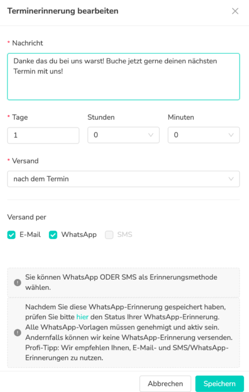
In your Shore calendar, go to Reminder Settings.
-
Create a new reminder or edit an existing one.
Important: The reminder text should be written as plain informational text only.
Do not use placeholders or variables such as:
{name}1- or similar placeholder formats
Using placeholders may cause the template to be rejected by Meta.
-
Choose WhatsApp as the delivery channel (instead of SMS or email).It’s recommended to also select email as an additional delivery method.
-
Click Save.
WhatsApp reminders apply to all appointments at the selected location, including appointments that already exist.
It is therefore not possible to test reminders with only a subset of customers or appointments.
📌 Important:
Each WhatsApp reminder template must be approved by Meta.
We recommend setting up WhatsApp reminders a few days before you plan to use them. This allows enough time for Meta's approval process and for any potential adjustments if required.
Step 7: Manage Templates
-
In Superchat, you’ll see all WhatsApp templates that are automatically generated.
-
If you have multiple WhatsApp reminders active, you will see multiple templates.
-
Use the template ID (visible in the Shore URL) to match each one to the correct reminder.
Editing reminder templates
When you change the text of a WhatsApp reminder, Shore automatically creates a new template.
The new template must be approved by Meta before it can be used.
At the same time, the previous template is removed.
If WhatsApp is disabled for a reminder or the reminder is deleted, the associated WhatsApp template is removed as well.
⚠️ Important:
Never delete templates directly in Superchat.
Always manage them from the Reminders section in Shore.
Step 8: Deactivate the Integration
If you decide to stop using the integration:
-
Go to Integrations in your Shore calendar and deactivate the Superchat integration.
-
Switch your reminders back to SMS or email.
-
Cancel your Superchat subscription directly from your Superchat account.
✅ That’s it!
Your WhatsApp integration is now fully set up.
You can now communicate directly with your customers through WhatsApp — for reminders, promotions, or newsletters — and manage everything easily from your Shore system.
💡 Managing Multiple Locations
If you manage multiple locations in Shore, each location must be connected to Superchat separately.
Each location uses the WhatsApp number associated with the API key entered for that specific location.
If each location should send messages from its own WhatsApp number, every location requires its own API key from a dedicated Superchat workspace that contains only that location's WhatsApp number.
WhatsApp reminders and templates must also be configured separately for each location.
Example: If you have three locations, you will need three API keys, one for each location.
If a WhatsApp number is added or changed later, reconnect the API key in Shore to ensure the updated configuration is applied.