![3.2_logo_outlined_black.png]](https://help.shore.com/hs-fs/hubfs/3.2_logo_outlined_black.png?height=34&name=3.2_logo_outlined_black.png)
The "Sell Vouchers" newsletter template lets you easily draw customers' attention to your online shop or a voucher page.
In this article, you'll learn how to:
- Create a newsletter using the template
- Insert your own link
- Customize the color and style of your link
Creating a Newsletter Using the Template
- Open the Newsletter feature via the main menu.
- Click New Campaign > New Newsletter to create a newsletter. Here's a direct link to your calendar's newsletters.
- Select the "Sell Vouchers" template.
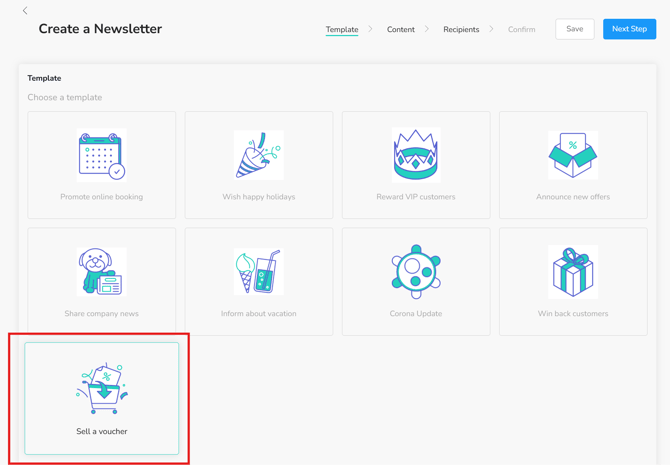
- Adjust the text in the editing window as needed.
Inserting a Link
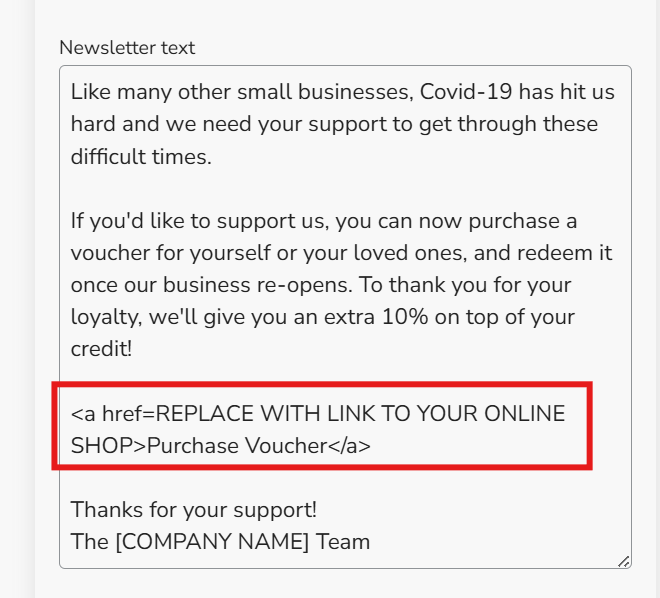
A placeholder link is already included in the newsletter text. However, this won't work until you replace the placeholder (1) "REPLACE WITH LINK TO YOUR ONLINE SHOP" with the link to your voucher page. Optionally, you can also change the link text (2) "Purchase Voucher" which is what your customers will see in the newsletter.
Styling the Link
Optionally, you can also change the color and style of your link by slightly adjusting the HTML code in the editing window. You can copy the following suggestions directly into your newsletter template (just remember to insert your own link):
| Style | HTML Code | Preview | Other Options |
|---|---|---|---|
| Red text | <a style="color:red" href=https://www.shore.com>Visit Online Shop</a> |
(preview image) | To use a different text color, replace "red" with another color name. |
| Bold text | <a style="font-weight:bold" href=https://www.shore.com>Visit Online Shop</a> |
(preview image) | |
| Red and bold text | <a style="color:red; font-weight:bold" href=https://www.shore.com>Visit Online Shop</a> |
(preview image) | To use a different text color, replace "black" with another color name. |